
How to add a mailbox to existing google package
Sign in to https://channelservices.cloud.google.com when signed in to your Google account to log in to the Google reseller account.
Once logged in, you can click on customers to view all of the domains that are added to our reseller account.

You will need to scroll the list of accounts to find the one you require. Once you have found the correct domain, click on it and it will bring up a list of subscriptions that are available and the associated mailboxes.

Once you have selected the subscription package you want to add a mailbox to, you will probably find that you don’t have any spare licenses. If this is the case, you will need to click on the edit button next to “Licences” you will then be able to increase the licence cap.

Once you have done this, you have the ability to add a new mailbox. To add the new mailbox and user, you will need click on the active subscription to bring up the domain details and some quick link. Click on the “Manage users” link to bring up a list of users for that domain. As you can see, there as an option a the top of the screen to add a new user, so click on this link.

This will bring up some fields that you can add the details to for the new mailbox. It is required to add the full name and primary email for the account, but is also advisable to add a Secondary email address in order to have the sign-in intructions sent to. Then just click add new user.

You can then preview the account details and choose to send sign details to the new user. You will only be able to do this if you have added a secondary email address.
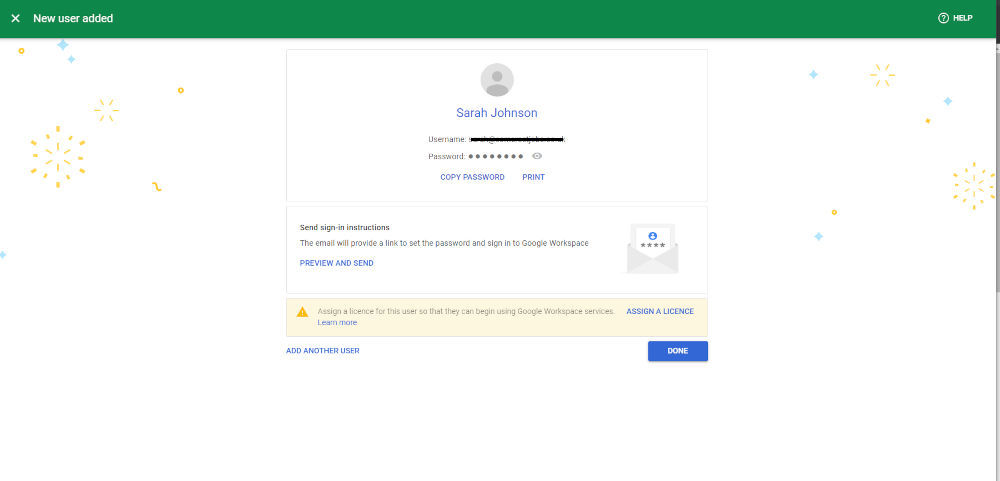
All you need to do after that is click done, and your new mailbox has been added!